

Basic Test automation stack with XRay, Jira, and Jenkins
A common and effective test automation stack
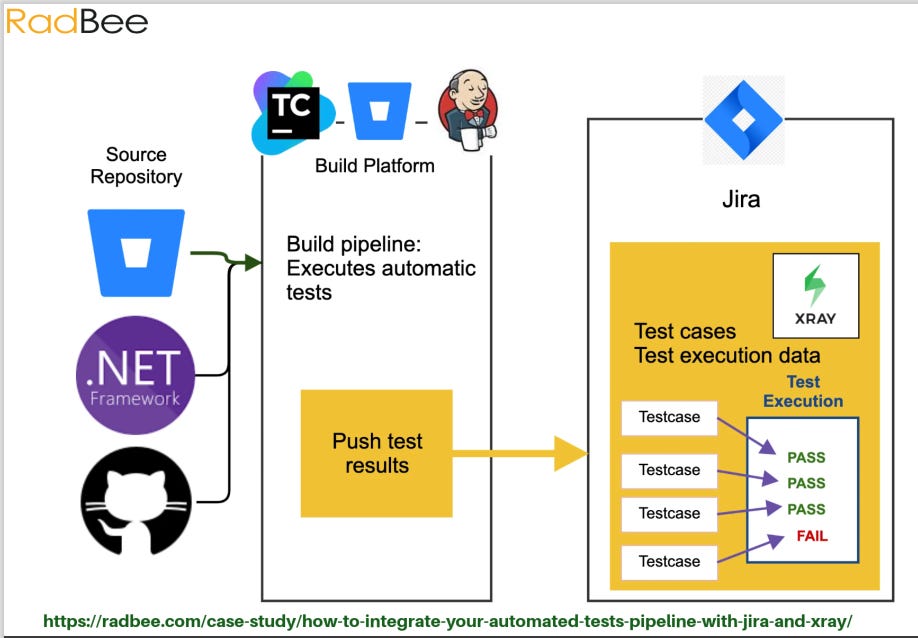
Integrating Test Automation Stack: XRay, Jira, and Jenkins
This guide will walk you through the process of integrating XRay for test case management, Jira for defect tracking, and Jenkins for continuous integration and deployment within your test automation infrastructure. This setup aims to create a streamlined workflow from automated test execution to result reporting and defect management.
1. Introduction to the Stack Components
XRay (Test Management for Jira): A powerful Jira add-on for comprehensive test management. It allows defining, executing, and reporting various test types (manual, automated) directly within Jira, linking them to requirements.
Jira (Issue Tracking): The central platform for project management, user stories, tasks, and, critically, defect tracking. XRay leverages Jira's capabilities for traceability.
Jenkins (Continuous Integration & Deployment): An open-source automation server that orchestrates the entire CI/CD pipeline. It will be responsible for triggering builds, executing automated tests, collecting results, and initiating deployments.
2. Prerequisites
Before you begin the integration, ensure the following are in place:
Jira Instance: A running and accessible Jira instance.
XRay for Jira App: XRay installed and configured within your Jira instance.
Jenkins Server: A running and accessible Jenkins server with necessary build agents.
Source Code Repository (VCS): Your application code and automated test scripts are stored in a version control system (e.g., Git, SVN) accessible by Jenkins.
Automated Test Framework: Your automated tests (e.g., Selenium, Playwright, Cypress, JUnit, TestNG, Pytest) are set up to run from the command line and can generate test reports, preferably in JUnit XML format.
3. Core Integration Steps
Step 3.1: XRay & Jira Initial Setup
Verify XRay Installation: Ensure XRay is correctly installed in your Jira instance. You should see XRay-specific issue types (Test, Test Execution, Test Plan, Pre-Condition, Test Set) available in your project.
Configure XRay Issue Types: Familiarize yourself with how XRay uses these issue types.
Test: Represents an individual test case (manual or automated).
Test Execution: A run of one or more tests.
Test Plan: A collection of Test Executions, often used for release cycles.
Create Automated Test Issues in XRay:
For each automated test script in your framework, create a corresponding "Test" issue in Jira (using the XRay Test issue type).
Crucially, in the "Test Details" section of the XRay Test issue, set the "Test Type" to "Generic".
In the "Test Script" field (under "Generic Test Definition"), enter the unique identifier of your automated test. This is typically the fully qualified class name and method name (e.g.,
com.example.tests.MyLoginTest#testValidLogin) or a unique test ID from your framework. This identifier is vital for XRay to map incoming results to the correct Test issue.Link these "Test" issues to relevant Jira requirements or user stories for traceability.
Step 3.2: Preparing Your Automated Test Framework
Your automated test framework must be capable of:
Command-Line Execution: Tests should be executable via a command-line interface (e.g.,
mvn test,npm test,pytest).JUnit XML Report Generation: Configure your test runner to output results in JUnit XML format. Most popular frameworks support this natively or via plugins:
Maven/Surefire/Failsafe: Generates
TEST-*.xmlfiles by default.Gradle: Use
test { useJUnitPlatform() }oruseTestNG()and ensure report generation is enabled.Python (pytest): Use
pytest --junitxml=report.xml.JavaScript (Jest, Cypress, Playwright): Configure their reporters to output JUnit XML.
Step 3.3: Jenkins Setup and Pipeline Configuration
Jenkins Installation & Basic Setup:
Ensure Jenkins is installed and running.
Install necessary plugins:
Git Plugin: For SCM integration.
Pipeline Plugin: For defining CI/CD pipelines (recommended).
JUnit Plugin: To publish JUnit test results within Jenkins.
XRay for Jira (Official) Plugin (Optional but Recommended): This plugin simplifies the integration with XRay, providing dedicated build steps to publish results. If this plugin is not suitable or available for your Jenkins/XRay version, you will use the XRay REST API directly (as described in the next step).
Jira Plugin (Optional): For general Jira integration, though XRay handles test result publishing.
Create a Jenkins Pipeline Job:
In Jenkins, create a new "Pipeline" job. This allows you to define your build, test, and deployment steps using a
Jenkinsfile(Groovy script) in your SCM.
Configure SCM:
In your Jenkins job configuration, set up the "Pipeline" section to fetch your
Jenkinsfilefrom your SCM (e.g., Git repository). Ensure Jenkins has credentials to access your code.
Define the Jenkinsfile (Example):
This
Jenkinsfileoutlines the typical stages for building, testing, and reporting to XRay.
Important Notes for Jenkinsfile:
credentials('xray-api-token'): You must create a "Secret Text" credential in Jenkins (Jenkins -> Manage Jenkins -> Manage Credentials -> Global credentials -> Add Credentials) and store your XRay API token there. Give it the IDxray-api-token.JIRA_BASE_URL,JIRA_PROJECT_KEY,XRAY_TEST_PLAN_KEY: Replace these placeholders with your actual values.findFilesandcombinedReportPath: This combines multiple JUnit XML files into one, which is often required or preferred by the XRay API. Adjust theglobpattern to match your test report locations.XRay API Authentication: XRay typically uses Jira's authentication. You can use a Jira API token generated for a specific user, or an XRay API Key if your XRay version supports it directly for API calls. The
Bearertoken method is common.Error Handling: The
try-catchblock aroundsh 'mvn test'ensures that even if tests fail, the pipeline proceeds to publish results to XRay. The overall build status in Jenkins will still reflect the failure.
Step 3.4: Defect Tracking Integration (Jira)
XRay's Automatic Defect Creation: When test results are imported into XRay (especially if tests fail), XRay can be configured to automatically create a new Jira "Bug" issue or link to an existing one.
Go to Jira Administration > Add-ons > XRay > General Settings (or Project Settings for project-specific configurations).
Look for settings related to "Defect Mapping" or "Defect Creation". Configure XRay to create a defect when a test run fails.
The automatically created bug will be linked to the specific XRay Test Execution and the failing Test issue, providing full traceability.
Step 3.5: Deployment Triggering
Conditional Deployment in Jenkins: As shown in the
Jenkinsfileexample, theDeploymentstage is wrapped in awhen { expression { currentBuild.currentResult == 'SUCCESS' } }block. This ensures that your application is only deployed if all preceding stages, including test execution and XRay result publishing, complete successfully.Deployment Steps: Within the
Deploymentstage, you would add your specific commands or scripts to deploy your application to the target environment (e.g., deploying to a server, pushing to a container registry, triggering another deployment pipeline).
4. Workflow Overview
Code Commit: A developer commits code changes to the version control system.
Jenkins Trigger: Jenkins detects the new commit (via SCM polling or webhook) and triggers a new build.
Build & Test Execution: Jenkins checks out the application and test code, builds the application, and then executes the automated test suite.
JUnit XML Generation: The automated tests run and generate JUnit XML reports detailing test outcomes.
XRay Result Publishing: Jenkins, using a
curlcommand (or the XRay Jenkins plugin), uploads the JUnit XML reports to XRay via its REST API.XRay Updates: XRay processes the incoming results:
It creates a new "Test Execution" issue (or updates an existing one).
It updates the status (PASS/FAIL) of the linked "Test" issues.
For failed tests, XRay automatically creates or links a "Bug" issue in Jira, providing immediate visibility to the development team.
Defect Management: Developers are notified of new bugs in Jira, investigate, fix, and the cycle continues with new code commits.
Conditional Deployment: If all tests pass and are successfully reported, Jenkins proceeds with the deployment of the application to the target environment.
Reporting & Monitoring: Stakeholders monitor XRay dashboards in Jira for real-time quality metrics and test progress. Jenkins also provides its own build history and test trend graphs.
5. Best Practices and Considerations
Authentication Security: Always use Jenkins credentials (Secret Text) for API tokens/keys instead of hardcoding them in the
Jenkinsfile.Granular Permissions: Ensure the Jira user associated with the XRay API token has only the necessary permissions (e.g., "Create Issues," "Edit Issues," "Transition Issues" for Test Execution and Bug issue types).
Test Data Management: Implement strategies for managing test data to ensure test repeatability and reliability across different environments.
Environment Variables: Utilize Jenkins environment variables and parameters to make your pipeline flexible for different environments or test configurations.
Parallel Test Execution: For large test suites, consider configuring Jenkins to run tests in parallel across multiple agents to reduce execution time.
Pipeline as Code: Sticking to
Jenkinsfile(Pipeline as Code) offers version control, reusability, and easier maintenance of your CI/CD process.Notifications: Configure Jenkins and Jira/XRay to send notifications (email, Slack, etc.) on build failures, test failures, or new defects.
Cleanup: Ensure your Jenkins workspace is cleaned up after each build to prevent issues and save disk space (
cleanWs()inpostsection).Monitoring: Regularly review Jenkins build logs, XRay dashboards, and Jira defect reports to identify bottlenecks or recurring issues.
Version Compatibility: Keep your Jenkins plugins, XRay, and Jira versions compatible. Refer to XRay's documentation for specific compatibility matrices.
By following this guide, you can establish a robust and efficient test automation pipeline that integrates seamlessly with your existing Jira and XRay setup, providing valuable insights into your software quality.